A Router sits between your network and the rest of the world wide web. It’s the first point of contact your PC/game console/etc. has to the outside world and the first point of contact the outside world has to your network. This post is going to go over some theories and ideas to help keep a home router secure against unauthorized users and hackers.
It’s important to note a few things. First, these are just ideas and may not be correct for a considered network. Next, the idea is that each concept would work in layers to guard the network router. To put it another way, they each present different obstacles for someone to need to solve before breaking into a network router. Security is usually a trade off with convenience. Now, let’s figure some ways to keep out our Hollywood hacker.
First Idea: Change your Admin login username and password!
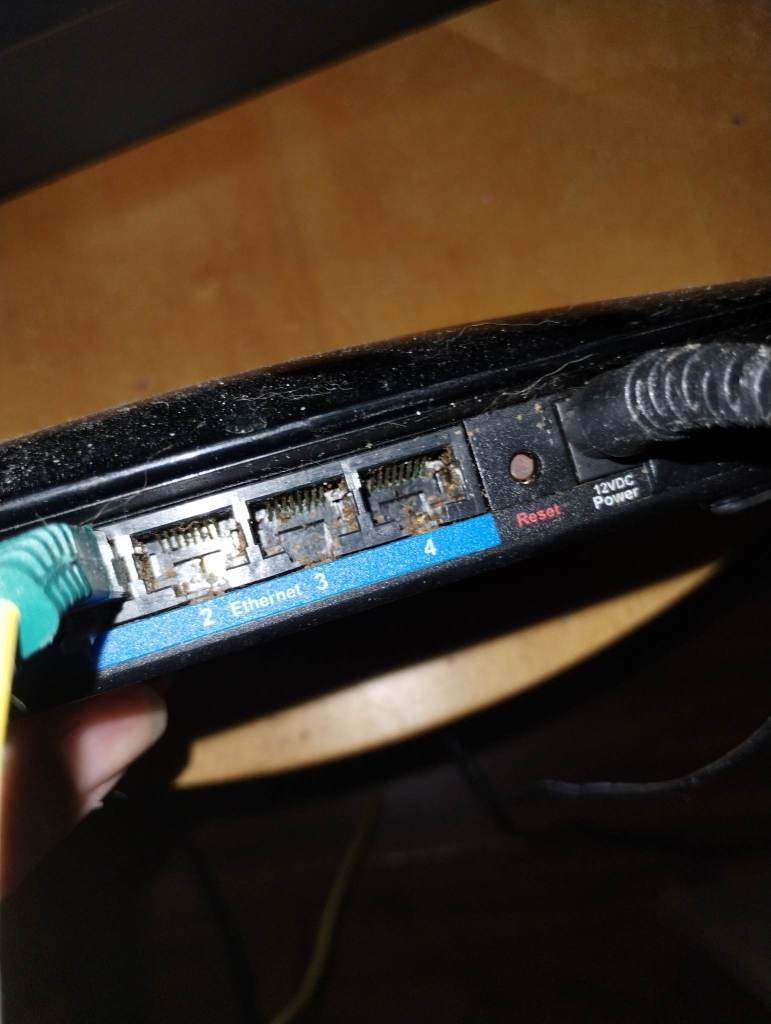
First thinks first, if your router has a default admin user and password to its configuration settings, change this! Although keeping default or simplistic name and password for admin access does wonders for convenience, the default login credentials are searchable online. If a person who wants to connect to your network without you knowing gets these, that’s quite possibly most of an unauthorized user needs to get in. If the changed admin name and password are forgotten, there’s likely a button on the back to reset to default.

Second Idea: Wi-Fi Network Security Considerations
- Do I need Wi-fi at all?
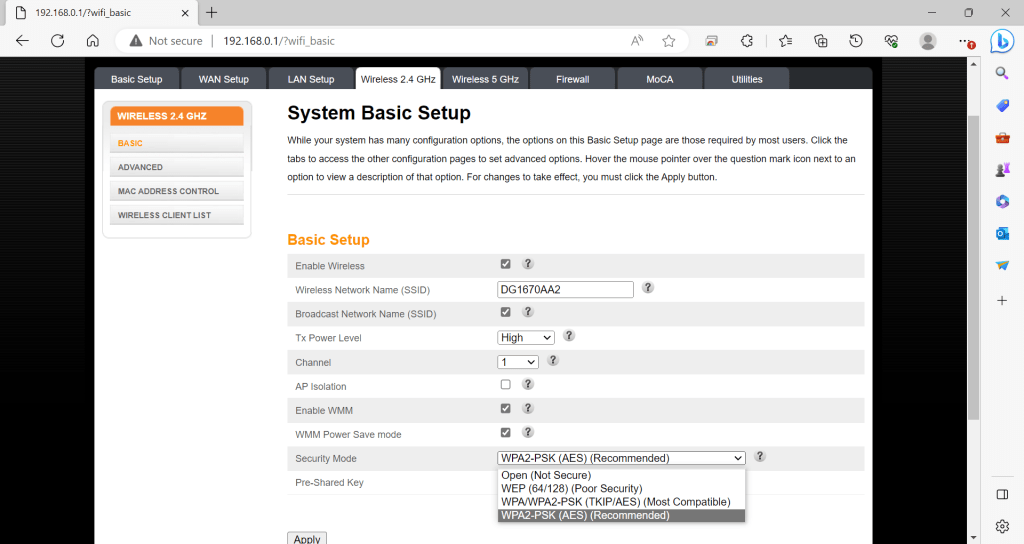
Wi-Fi is highly convenient and found nearly everywhere. If my Wi-Fi is not secure, it’s like leaving my key to the home in the lock. One computer concept used is the idea of turning off unneeded services. The link of interest (CERT NZ, “Disabling Unnecessary services and Protocols”) talks about doing this. This is worth considering for Wi-Fi also. If I have no need of Wi-Fi, leaving it on presents an additional way for an intruder to break into my network. Should all my devices be Ethernet or hardwired, turning off Wi-Fi is a better idea.
- Do I Leave the SSID Broadcast Feature On?
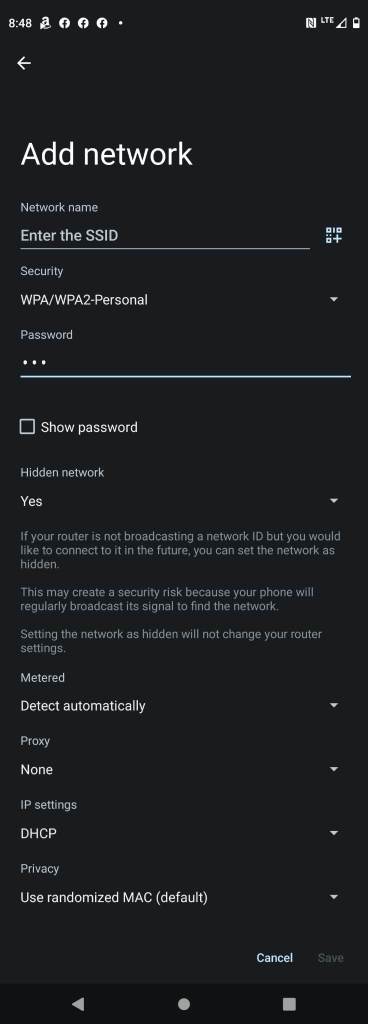
Another step in keeping my Wi-Fi a bit more secure is disabling the SSID broadcast. When active, the SSID Broadcast feature sends causes the Wi-Fi Router/Access Point to send out a radio signal every so often with the name of the network to connect to. Wi-Fi enabled devices can pick up on name if in range. Turning this off adds a small additional step to stop someone from attempting to connect to my network. It does however make a little less convenient for guests and users to hook into the Wi-Fi as the network name needs to be entered for each device then rather than just picking it up from a list. It is important to know that this does not stop someone determined to find your network from doing so (Ciprian Adrian Rusen, Digital Citizen, “How to Find hidden Wireless networks”).
- Radio Antenna Power Level Considerations
If the router / access point lets me control how strong of a radio signal it emits, that presents another way to help secure Wi-Fi in a network. With a bit of testing, one should be able to find a setting to let the Wi-Fi access point/ router to be able to service just the physical range of the area it’s in.
To paint an example, let’s say I purchased the “Router 3000 with a two mile range for its Wi-Fi. If I leave its radio antenna at the two mile range, I now have to contend with the possibility of two miles worth of area that possibly may try connecting to the Router 3000”. It would be overkill to use that Wi-Fi access point at full strength if all I need is for it to serve a small home. If the router 3000 is serving a home, it would be better to lower the Radio Antenna Power Level down to a range that lets me connect to my network on the property rather than connecting to the same network at the house from the coffee shop via my Wi-Fi device. With Consideration with our screenshot, the setting I’d need to adjust is the Tx Power Level.
- AP Isolation Considerations: What is it and Why Consider it?
I’ve been talking about Wi-Fi Router/ Wi-Fi a lot so why is something called “AP Isolation”? The AP in this setting short for Access Point. In this context, it’s referring to the device that’s used for machines to hook to the Wi-fi. There are devices that are exclusively Wi-Fi antennas that add Wi-Fi to an existing network and have a cable running from them to a router. One such example would be the Cisco Catalyst listed in our links of interest.
AP Isolation for this mode and from what reading the information about would place each client (device) that hooks to our Wi-Fi network effectively in its own instance. The implication of this is that they get internet still but cannot see or talk with each other on the network. If I’m using this for a lot of guests coming and going, it would be a nice idea to enable it.
- Picking the right Encryption for Wi-Fi Network.
The short consideration for this is pick the most recent version of the protocol that all your devices support; however, let’s consider some additional ideas. In the list below, I bring up the concept of a preshared Key. This passphrase/word is what the user will typically enter when connecting to the Wi-Fi network the first time.
- OPEN Access
Open for Wi-Fi means that the Access Point/ Wi-Fi Router do nothing to encrypt the traffic flowing through it. The implications of this is that anyone with a way to pick up the traffic flowing over the Wi-Fi can actual see what’s going on in the network. There are ways such encrypt traffic between client and the router such as using a VPN (Virtual Private Network). A VPN establishes encrypted communication between the clients over unsecured network such as the internet. Without using something to encrypt client/router/network communications, it’s open season on Wi-Fi network eavesdropping. Note for open network, there is no preshared key to enter.
- WEP Access
WEP or Wireless Encryption Privacy sounds wonderful. One even gets to pick a passkey but don’t use WEP. It’s been cracked/broken which means that it is no longer secure. There are tools out there that enable finding the passkey without the person running the tool needing to know the original key. However, for a mild positive aspect, this does make an attempt at encrypting traffic on the Wi-Fi network.
- WPA/WPA2 Access
WPA/WPA2 or Wi-Fi Protected Access (2) came out after WEP. There are a lot of devices that support it and likely the PSK (preshared key) variant is what’s going to be for the home router. Like WEP, one can specific a key/passphrase for users to connect to the network. Unlike WEP, it’s someone more secure.
There is a version for this that mentions RADIUS/Tardac+. Those are usually going to be used in a commercial office area. What they do is when a device connects to a Wi-Fi that’s in this mode, said Wi-Fi presents the entered user credentials to a central server. If the central service does not approve, the connection is refused.
WP2 unfortunately has been cracked also (Bill McGee, Fortinet, “WPA2 Has Been Broken. What now?”) This means with enough packets (bits of data transmitted over the network), an attacker can potentially gain access and eavesdrop on your network. WP2 Still has some use but it’s important to realize standards can change as flaws and problems occur. The time may come to where WP2 is not considered secure at all.
Third Consideration: MAC Address Filtering
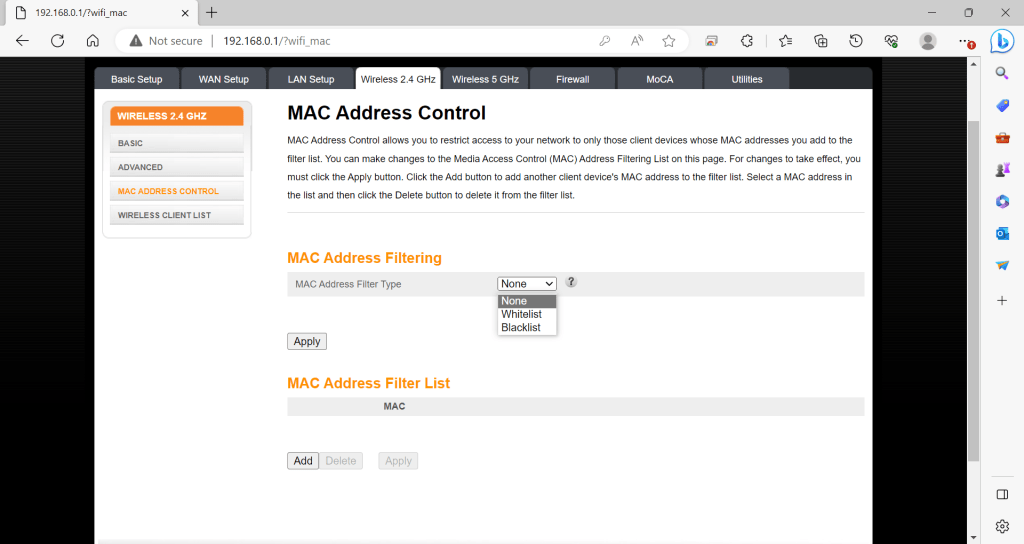
MAC Address filtering comes in two flavors, the blacklist (no not the TV show), and a whitelist. A MAC Blacklist is a list of MAC addresses to for the router refuse connection too. A MAC Whitelist is the reverse. Putting the router in this mode means that it should refuse connection from devices who don’t have a MAC address in the list. More than a few devices can change their MAC address so picking the Blacklist may not be the best route. One such example would be the Android that I got the screenshot above. On the plus side, if I’m the one working with my network, I should be able to make a list of MAC addresses for devices that connect to it. Creating a Whitelist and putting my device MAC addresses in in said list is another obstacle for someone attempting to break into my network.
Fourth Consideration: Turn WPS (Push to Connect) off.
WPS Is a feature that enables a user to press a button on the Wi-Fi AP / Router and choose the right setting on the Wi-Fi complete with each device knowing the chosen encryption. Now that does sound cool. How secure it it?
WPS is unfortunately vulnerable to a brute force attack (Stefan Viehböck, Sveihb.files.wordpress, “Brute forcing Wi-Fi Protected Setup”). The way our link of reference talks about it is the PIN that gets transmitted to request the connection via WPS is functionally divided in half and a client can see the response generated from the Wi-Fi router to determine if the first half of the PIN accurate and if the second half of the PIN is accurate. One an attacker gets the message that the first half the PIN is right, they can just move on to the 2nd half of the PIN rather than trying to keep on guessing. To put it another way, our reference states that the PIN is functional weakened by some venders not including checks against a bunch of attempts in guessing the wrong PIN and the way the PIN is setup by the Wi-FI device returning different messages depending on if the first half and 2nd half of the PIN being right further weakens the WPS/PIN use as a security feature. In short, it’s likely a good idea to turn off WPS if possible, on the home router if the user is wanting to make their network harder to break into.
Fifth Consideration: Keep a running tab on your router’s updates.
Routers are mostly miniature computers with an OS and are dedicated to handling network data in addition to other features. Some routers can also be updated. One does not need to update every time if the router manufacture recommends it, but keep in mind that this is my opinion. One thing that would make me want to update to a new version of the router OS is if there’s a known vulnerability to the firmware/OS on my router runs called Remote Code Exploit. That would make me want to update pronto. A Remote Code Exploit is code that takes advantage of a bug in software to potentially gain access or force said software to do something it was not designed to do. If an attacker successfully ran a successful Remote Code Exploit against my router, he or she may gain full control of the device and possibly be able to use it as he or she sees fit. One thing to also keep in mind, if your router is borrowed/rented from your ISP, you may want to actually see if they’re responsible for that rather than just blindly update.
Wowsers! What a long post! Thanks for reading. I hope this is useful in getting you to think about securing Wi-Fi routers/ access points. Do you have an idea or suggestion for me to write about? Any feedback or concerns. Please Email suggestions@itlessonslearn.com. Leaving a comment is ok too.
Links of Interest
- VU#228519 – Wi-Fi Protected Access (WPA) handshake traffic can be manipulated to induce nonce and session key reuse (cert.org)
- Wired Equivalent Privacy – Wikipedia
- Quickfire: Physical vs Logical or “Benefits to Virtualize the Implementation Away” – IT Lessons Learn
- How does Wi-Fi Protected Setup work? | Wi-Fi Alliance
- Brute forcing Wi-Fi Protected Setup (wordpress.com)
- LINKSYS WRT54G Default Router Login and Password (cleancss.com)
- Disabling unnecessary services and protocols | CERT NZ
- How to find hidden wireless networks (SSIDs) in your area, in Windows | Digital Citizen
- Cisco Catalyst 9100 Wireless Access Points – Cisco – Cisco
- WPA2 Has Been Broken. What Now? (fortinet.com)
- What Is a Virtual Private Network (VPN)? – Cisco

 IT Lessons Learn
Leave a comment